
When we talk about a navbar in React JS, we're not just talking about a simple list of links. It’s a core piece of the user interface, built with React's component-based approach to manage everything from navigation links to user state. In a single-page application, it's what makes the user experience feel seamless, letting people move around without those clunky, full-page reloads.
Why a Modern Navbar Is Crucial for UX
Let’s be honest: in modern web dev, a navbar is so much more than a menu at the top of the screen. It's the primary way users find their bearings and explore what you've built. A confusing navigation bar is a one-way ticket to a high bounce rate. On the flip side, an intuitive one guides users effortlessly, which is a game-changer for engagement and conversions.

With single-page applications (SPAs) becoming the standard, users expect fluid, dynamic navigation. The jarring interruption of a full-page refresh feels dated. This is exactly where building a navbar with React JS truly comes into its own.
The Power of React for Navigation
React's component-based structure is practically tailor-made for building robust, reusable navigation systems. Instead of treating the navbar as a static chunk of HTML, you can build it as an intelligent component that reacts to application state, user authentication, or even the screen size. This approach not only simplifies the development process but also keeps the user experience consistent everywhere in your app.
There's a reason React has become the go-to for navbars, now powering over 11 million live sites. It’s especially popular on high-traffic websites where a flawless UX isn't just a nice-to-have—it's essential for success. For a deeper dive into its market dominance, you can check out the latest React JS trends at Netguru.
A great navbar does more than show users where to go; it instills confidence and makes the digital experience feel intuitive and polished. It’s often the first and most frequent interaction a user has with your interface.
Accelerating Development with Magic UI
Sure, you could build a navbar from scratch in React. But why reinvent the wheel? Modern UI libraries like Magic UI give you a massive head start. They come packed with pre-built, customizable, and animated components that deliver a premium feel right out of the box.
Using a library like this lets you focus on what makes your app unique, while still getting a professional, highly interactive result. In this guide, we'll walk through creating a responsive and beautiful navbar react js component by tapping into the power of Magic UI.
Setting Up Your React Project Environment
Before we dive into building a slick navbar react js component, we need to get our workspace ready. A solid foundation is everything, which means setting up a modern, fast development environment. For this, we'll be using Vite. If you're coming from Create React App, you'll be blown away by how much faster the development experience is.
First things first, let's spin up a new React project. Pop open your terminal and run this command. It'll ask for a project name and walk you through picking React and TypeScript.
npm create vite@latest your-navbar-project -- --template react-ts cd your-navbar-project npm install
This one-liner creates a new directory for your project, jumps inside it, and pulls in all the initial packages you need. In just a couple of minutes, you'll have a live React app, ready for the fun part.

The screenshot above gives you a taste of the clean, modern aesthetic you get with Magic UI components—which is exactly what we're about to install.
Integrating Tailwind CSS and Magic UI
Magic UI components are built right on top of Tailwind CSS, so getting it integrated is a must. Tailwind's utility-first approach is a perfect match for React's component-based world, letting you style things quickly and directly inside your JSX.
Let's get Tailwind and its buddies installed. Run these commands to add the packages and generate the config files you'll need:
npm install -D tailwindcss postcss autoprefixer npx tailwindcss init -p
With Tailwind in place, adding Magic UI is a piece of cake. It's just a single dependency that bundles all the components and their slick animations.
npm install magic-ui-react
The real secret to a smooth setup is getting your dependencies configured correctly from the get-go. A clean
package.jsonand a properly set uptailwind.config.jsfile will save you from some of the most common headaches later on.
For a more detailed walkthrough on getting Tailwind CSS configured in a React project, you can check out our guide on how to install Tailwind in React at https://magicui.design/blog/install-tailwind-react. It'll make sure your tailwind.config.js and main CSS file are set up to properly handle all of Magic UI's classes.
As you're setting up your environment, it's always good to have some context on how different frameworks stack up. A quick read of a comparison like Flutter Vs React Native can give you a broader perspective on the ecosystem.
Alright, with your environment locked and loaded, you're ready to start building. Next, we'll import the components we need and start putting together the Navbar component itself.
Building Your Core Navbar Component
With our project environment ready to go, it’s time to actually build our navbar react js component. We’ll start by laying down the foundational JSX structure—keeping it clean, semantic, and reusable from the get-go. First, we'll get the essentials in place (a logo and our main links), and then we'll pull in a sleek Magic UI component to give it that modern, interactive feel.
First things first, create a new file in your components directory. Let's call it Navbar.jsx. Inside, we’ll define a functional component that maps over an array of link objects. I always prefer this approach over hardcoding links directly into the JSX; it makes updating or adding new navigation items down the line so much easier.
This initial setup ensures our component is organized and scalable right from the start.
Structuring the JSX and Adding Links
Let's get the basic layout down. Our component will return a <nav> element, which is the right semantic tag for a main navigation block. Inside, we'll have a spot for our logo and a <ul> to hold our links. For a real-world app, you'd probably have links like 'Features', 'Pricing', 'Blog', and maybe a primary call-to-action like 'Get Started'.
Here’s what that initial component looks like. Notice how we're mapping over a navLinks array to keep our code DRY (Don't Repeat Yourself). It's a simple habit that pays off big time in larger projects.
import React from "react"
const navLinks = [
{ name: "Features", path: "/features" },
{ name: "Pricing", path: "/pricing" },
{ name: "Blog", path: "/blog" },
]
export const Navbar = () => {
return (
<nav className="fixed top-4 z-50 flex w-full justify-center">
<div className="flex items-center gap-4">
{/* Placeholder for Logo */}
<span className="text-lg font-bold">YourLogo</span>
{/* Navigation Links */}
<ul className="flex items-center gap-4">
{navLinks.map((link) => (
<li key={link.name}>
<a
href={link.path}
className="transition-colors hover:text-gray-400"
>
{link.name}
</a>
</li>
))}
</ul>
</div>
</nav>
)
}This code gives us a perfectly functional, if a bit plain, navbar. It's a solid foundation, but now it's time to bring in Magic UI to really elevate the design and feel.
Integrating Magic UI for a Modern Look
This is where the fun begins. We're going to swap out our basic div container with Magic UI's <Dock /> component. This component is a game-changer—it provides a beautiful, animated container with a magnetic hover effect, instantly making the navbar feel more dynamic and polished.
First, you'll need to import it at the top of your Navbar.jsx file.
import { Dock, DockIcon } from "magic-ui-react"Next, we'll wrap our navigation links inside the <Dock /> component itself. Each link will then be placed inside a <DockIcon /> to get those signature hover and scaling effects that make it feel so premium.
The
<Dock />component is a fantastic way to add a high-end feel with minimal effort. It handles all the complex animations behind the scenes, so you can focus on the structure and functionality of your navbar react js component.
Here’s the updated code with the Magic UI components integrated. We've replaced the <ul> with <Dock /> and wrapped each <a> tag in a <DockIcon />. The styling is all handled via className props, tapping into the power of the Tailwind CSS setup we configured earlier.
import React from "react"
import { Dock, DockIcon } from "magic-ui-react"
// Assuming navLinks array is defined as before
const navLinks = [
{ name: "Features", path: "/features" },
{ name: "Pricing", path: "/pricing" },
{ name: "Blog", path: "/blog" },
]
export const Navbar = () => {
return (
<nav className="fixed bottom-10 z-50 flex w-full justify-center">
{/* Dock container for nav items */}
<Dock direction="middle">
{navLinks.map((link) => (
<DockIcon key={link.name}>
<a
href={link.path}
className="flex h-12 w-12 flex-col items-center justify-center gap-1 rounded-full bg-neutral-900 text-sm font-medium text-gray-400 hover:text-white"
>
{link.name}
</a>
</DockIcon>
))}
</Dock>
</nav>
)
}Just like that, our navigation bar is no longer just a static list of links. It’s now an interactive, engaging element that responds to the user with fluid animations—setting a much better tone for the entire user experience.
Implementing a Fully Responsive Mobile Menu
A static desktop navbar is only half the battle. To deliver a truly professional user experience, our navbar react js component has to adapt flawlessly to any screen size. This is where we shift our focus from desktop aesthetics to mobile functionality, making sure our navigation is just as intuitive on a smartphone as it is on a wide monitor.
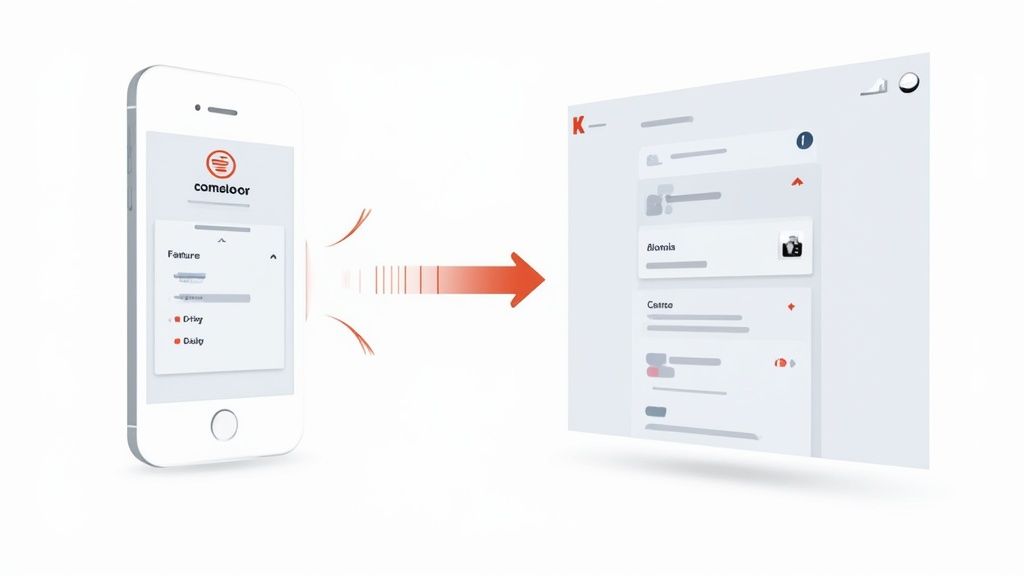
We'll lean on React's useState hook to manage the visibility of a mobile menu, toggling it open and closed. The real goal here is to create a seamless transition between the desktop view and a mobile-friendly overlay, complete with that classic hamburger icon.
Managing State for Mobile Views
First things first, to make our navbar responsive, we need to introduce state. We need a way for our component to "remember" if the mobile menu is open or not. For this job, the useState hook is perfect.
With just a single line of code, we can create a state variable—let's call it isMobileMenuOpen—and a function to update it, setIsMobileMenuOpen.
const [isMobileMenuOpen, setIsMobileMenuOpen] = useState(false);
This simple boolean state acts as our on/off switch. When a user taps the hamburger icon, we'll call setIsMobileMenuOpen to flip the value from true to false. This triggers a re-render and lets us conditionally apply styles or even render entirely different JSX. It’s this simple hook that powers our entire mobile menu's interactivity.
The demand for this kind of dynamic, state-driven navigation has exploded as React's market share has climbed from a mere 1.2% in 2015 to 5.9% today. Single-page applications are now the standard, and they depend on components like a navbar react js to handle navigation without jarring, full-page reloads. It’s really no surprise that 80% of Fortune 500 companies use React in production, with responsive navbars being a non-negotiable feature.
Using Tailwind CSS for Responsive Design
With our state management in place, it's time to bring in Tailwind CSS and its responsive prefixes to control what users see on different screens.
Tailwind's mobile-first approach is incredibly intuitive. You design for the smallest screen first, then layer on classes prefixed with sm:, md:, or lg: to adapt the layout for larger viewports.
For our navbar, this breaks down nicely:
- The Hamburger Icon: We only want this button visible on mobile. We can pull this off by giving it a class of
md:hidden, which simply means "hide this element on medium screens and up." - The Desktop Links: On the flip side, our main navigation links (inside the
<Dock />component) should only show up on larger screens. We'll give this container a class ofhidden md:flex, which translates to "hide it by default, but show it as a flex container on medium screens and up."
This approach keeps our JSX clean and declarative. We can build a fully responsive layout without ever leaving our component file or writing a single line of custom CSS media queries.
By combining React's state management with Tailwind's responsive utilities, you can build a highly adaptive UI that feels custom-built for every device. This is the modern workflow for creating components that are both powerful and maintainable.
The logic for a mobile overlay often shares principles with other UI patterns. For instance, if you're looking to build more complex navigation, you might want to check out our guide on how to create a drop-down menu, which uses similar concepts for managing visibility and user interaction.
Responsive Breakpoints for Navbar Design
Deciding when to switch from a desktop to a mobile layout is a critical design choice. Tailwind's default breakpoints are a fantastic starting point, as they cover the most common device sizes. Here’s a quick rundown of how you might use them for a navbar.
| Breakpoint Prefix | Minimum Width | Typical Device | Navbar Layout |
|---|---|---|---|
sm | 640px | Large Phones | Often still uses the mobile hamburger menu. |
md | 768px | Tablets (Portrait) | Good point to switch to the full desktop menu. |
lg | 1024px | Laptops, Tablets (Landscape) | Definitely desktop menu territory. |
xl | 1280px | Standard Desktops | The desktop menu should feel spacious here. |
This table helps visualize the transition points. For our navbar, the md breakpoint is the sweet spot to hide the hamburger icon and reveal the full navigation links, ensuring a great experience on both small and large screens.
Adding Polished Animations and Interactions
A working navbar is one thing, but a polished, interactive one? That’s what takes the user experience to the next level. Those finishing touches—the subtle animations and clear visual feedback—are what make a navbar react js component feel truly professional and intuitive.
So, let's go beyond the basics and inject some life into our navigation.

We'll kick things off with a popular feature you see on modern sites: a dynamic background that fades in as the user scrolls. It’s a subtle effect that adds a sense of depth and context, cleanly separating the navigation from the page content once the user starts exploring.
Create a Dynamic Background on Scroll
You might be surprised at how simple it is to implement a scroll-based background change using React hooks. The plan is to keep an eye on the user's vertical scroll position (window.scrollY) and then slap a different class on the navbar once they've scrolled past a certain point—say, 10 pixels from the top.
We'll lean on the useState and useEffect hooks to get this done.
First, we need a simple state variable to track whether the navbar should have its "scrolled" style or not.
const [scrolled, setScrolled] = useState(false)Next, we’ll use useEffect to wire up a scroll event listener to the window object as soon as the component mounts. Crucially, this effect also cleans up after itself by removing the listener when the component unmounts, preventing memory leaks.
useEffect(() => {
const handleScroll = () => {
// Set state to true if scrolled more than 10px, otherwise false
setScrolled(window.scrollY > 10)
}
window.addEventListener("scroll", handleScroll)
// Cleanup function to remove the event listener
return () => window.removeEventListener("scroll", handleScroll)
}, [])With that in place, all that’s left is to conditionally apply a class to your <nav> element. For instance, you could add a semi-transparent background color only when scrolled is true. If you want to dive deeper, learning about CSS animation on scroll can give you even more creative ideas.
Highlight the Active Navigation Link
Good UX is all about communication, and users should always know where they are in your app. Highlighting the active navigation link is a classic, powerful way to orient them.
If you happen to be using a library like React Router, this is almost laughably easy. The library provides a <NavLink> component, a drop-in replacement for the standard <a> tag, that comes with a handy isActive property built right in.
You can pass a function to the className prop to toggle your styles based on whether the link is active.
<NavLink
to="/features"
className={({ isActive }) =>
isActive ? "font-bold text-white" : "text-gray-400"
}
>
Features
</NavLink>In this snippet, the link's text will be bold and white if its route is currently active. It's a small detail that instantly signals the user's location and makes a huge difference in usability.
A great user interface isn't just about what it can do; it's about how it communicates with the user. Active link styling and scroll-based feedback are subtle conversations that guide and reassure the user at every step.
By layering in these interactions, your navbar react js component is no longer just a static list of links. It becomes a dynamic, responsive guide that enhances the entire feel of your application.
Got Questions About React Navbars?
When you're piecing together a slick navbar in React JS, a few common questions always seem to pop up. It's totally normal. You're often juggling routing, trying to mix different styling libraries, and making sure the final product is usable by everyone. Let's walk through some of the hurdles I see developers run into all the time.
How Do I Handle Routing with a React Navbar?
This one's a classic. To get that smooth, single-page application feel where views change without a full page refresh, you need a client-side routing library. My go-to, and the industry standard, is React Router.
It’s actually a pretty simple swap. Instead of using the old-school HTML <a /> tags for your links, you'll use the <Link /> component that comes with react-router-dom. So, a link that used to be <a href="/about">About</a> becomes <Link to="/about">About</Link>. That one change is all it takes to hook into your app's routing state, letting React Router handle the view changes without reloading everything.
Can I Use Magic UI with Other CSS Frameworks?
Short answer? Not really. Magic UI is built from the ground up to work hand-in-hand with Tailwind CSS and Framer Motion. The components lean heavily on Tailwind’s utility classes for all their styling, so Tailwind is a non-negotiable dependency.
Could you technically try to wrestle it into working with something like Bootstrap or Styled Components? Maybe, but you’d be fighting the framework every step of the way, overriding styles and dealing with conflicts. Trust me, it's not worth the headache. For a smooth ride, stick to a project that's already set up with Tailwind CSS.
Making your React navbar accessible isn't just a best practice; it's essential for creating an inclusive user experience. Using semantic HTML and proper ARIA attributes from the start will save you significant time and effort later on.
How Can I Make My React Navbar Accessible?
Accessibility (often shortened to a11y) isn't an afterthought—it's a core part of professional development. The best place to start is with semantic HTML. Use tags like <nav>, <ul>, and <li> to give your navigation a logical structure that screen readers can easily interpret.
For anything interactive, like a mobile menu toggle, always reach for a <button />. Don't try to make a div act like a button. You’ll also want to manage its state with ARIA attributes, like aria-expanded, to signal whether the menu is open or closed.
A few other key things to remember:
- Make sure every interactive element can be focused using the keyboard.
- Give those elements a clear, visible focus indicator.
- If you're using an icon, like a hamburger menu, provide an accessible name for it with an
aria-labelattribute.
Ready to build beautiful, animated, and production-ready components in minutes? Magic UI offers a powerful library of over 50 customizable blocks and templates built with React, Typescript, and Tailwind CSS. Explore the components and elevate your next project at https://magicui.design.