
Implementing react infinite scroll isn't just a fancy trick; it's a powerful way to load content dynamically as someone scrolls down a page. This creates a seamless, almost addictive browsing experience. Instead of forcing users to click through endless "Next Page" links, it delivers a continuous flow of information—perfect for social feeds, product catalogs, and news articles.
Why Infinite Scroll Is Essential for Modern Apps
Infinite scroll has become a cornerstone of modern web design, evolving from a neat trend into a core feature for keeping users on your site. The whole point is to eliminate the jarring interruptions of old-school pagination. By ditching the clicks and page reloads, you create a fluid, continuous journey that keeps people immersed in your content.
This pattern is a game-changer for platforms where discovery is the main event. Think about scrolling through your favorite social media feed or browsing an e-commerce site; the longer you explore, the more likely you are to find something you love, engage with a post, or make a purchase.
Keeping Users Hooked
The psychology behind infinite scroll is surprisingly simple but incredibly effective. It taps into our natural desire for a continuous flow of information, making the experience feel almost effortless. That endless stream of content removes the natural stopping points that pagination creates, which can massively boost engagement.
In fact, some studies show that websites using infinite scroll can see a 20-30% increase in average session duration compared to paginated ones. This effect is even more pronounced in React applications, where dynamic content is already a key strength. Big players built with React, like Instagram and Twitter, have reported that infinite scroll contributes to a 25% increase in user engagement metrics.
The real win here isn't just about loading more data; it's about maintaining a user's momentum. Every click on a 'Next Page' button is a potential exit point. Infinite scroll gets rid of that friction entirely.
Real-World Applications
So, where does this pattern really shine? You've seen it everywhere:
- Social Media Feeds: Platforms like X and Pinterest are built around it, presenting an endless stream of posts and images to keep you scrolling.
- E-commerce Product Listings: Retailers use it to let you browse massive catalogs without ever having to pause and click "load more."
- Content and News Aggregators: Sites like Medium offer a continuous reading experience, making it easy to discover one interesting article after another.
When you're ready to implement crucial features like infinite scroll, partnering with specialized web development services can help you nail the execution. Once you understand why this pattern is so effective, you're in a much better position to tackle the how—and build a solution that truly elevates your React app.
Build Your Own Infinite Scroll with Hooks
While grabbing a library is fast, there's nothing like building a react infinite scroll component from scratch to really understand how it works under the hood. When you use React's core hooks and a modern browser API, you get total control without bloating your project with another dependency. The plan is to lean on useState, useEffect, useRef, and the super-efficient IntersectionObserver API.
The whole point is to create a trigger that fetches more data just as the user is about to run out of content. The old way of listening to every single scroll event can be a performance nightmare. We're going to use a much smarter approach. The IntersectionObserver is perfect for this—it’s a native browser API built specifically to tell you when an element scrolls into view.
This simple flow is what we're aiming for: a smooth cycle of scrolling that keeps people engaged and on the page.
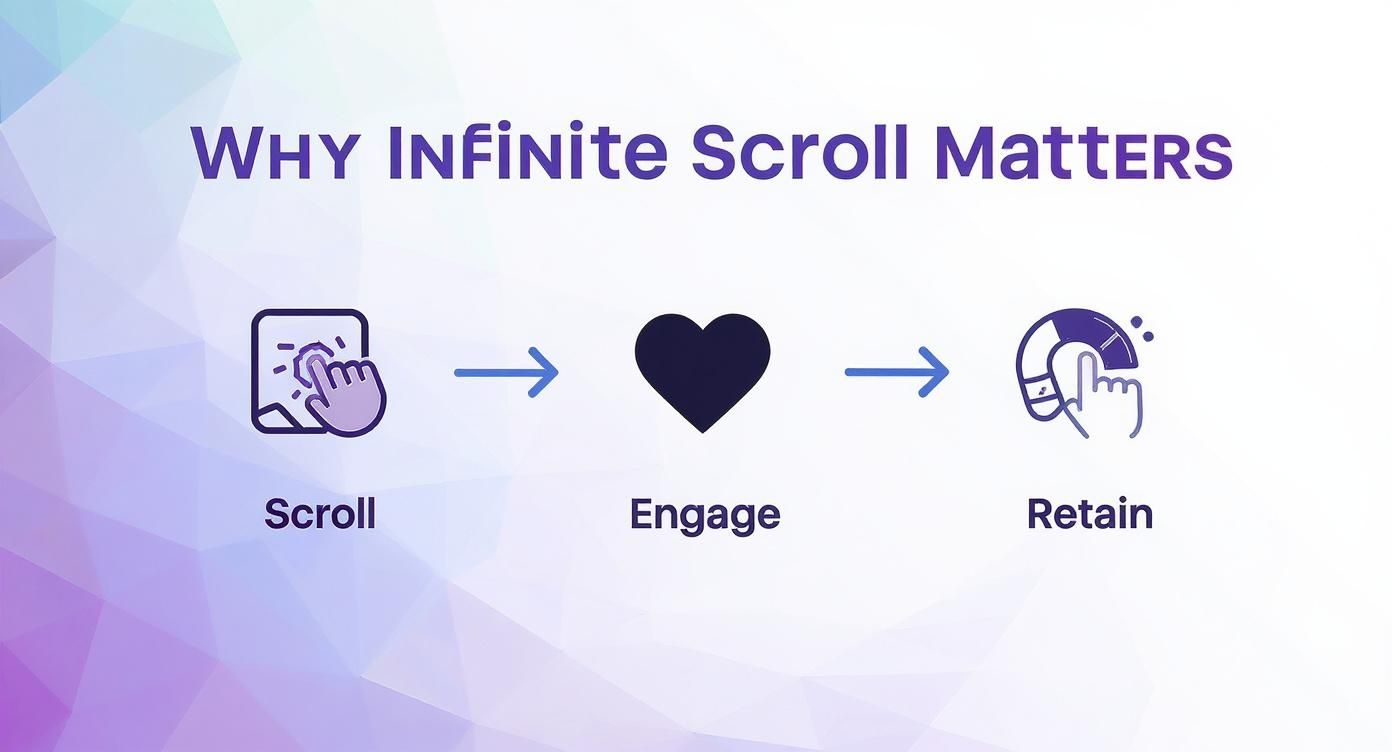
By removing the friction of clicking "next page," we create an experience that users don't want to leave. That's the core benefit we're building.
Setting Up the State and Refs
First things first, we need to handle our component's state. We'll need to keep track of the list of items we're displaying, the current page number we need to fetch next, and whether there's even more data available. useState is the right tool for the job.
We also need a way to "point" to a specific element in the DOM—our trigger—without forcing a re-render every time. That's a classic use case for useRef. We'll create a ref and attach it to an empty <div> at the very bottom of our list. This little div is what our IntersectionObserver will be watching.
useStatefor Data: To hold the array of items you're showing on screen.useStatefor Pagination: To keep track of the page number for the next API call.useReffor the Trigger: To create a stable reference to that "bottom" element.
The IntersectionObserver Logic
Now for the magic. All the observation logic will live inside a useEffect hook. This ensures we set up our observer when the component first mounts and, crucially, clean it up when it unmounts to prevent any memory leaks.
Inside useEffect, we'll create a new IntersectionObserver. This observer takes a callback function that runs whenever our target element (the <div> with our ref) crosses the viewport's threshold. As soon as that happens, we know the user has scrolled to the bottom. Time to fetch more data.
The real win here is that the
IntersectionObserveroffloads all the hard work from React directly to the browser. Instead of you manually checking scroll positions, the browser just taps you on the shoulder and says, "Hey, that element you asked about is visible now." It's way more performant.
To keep our code clean and reusable, we can wrap all of this up in a custom hook, maybe called useInfiniteScroll. This hook will handle the useEffect and IntersectionObserver setup, and it can just take a single argument: the callback function to fetch the data. This leaves our main component with one job: rendering the UI.
Bringing It All Together
Once our custom hook is ready, the main component becomes incredibly simple. It just needs to call useInfiniteScroll, pass in the data-fetching function, and then map over the items to render them. The loading sentinel—our ref-attached <div>—gets placed right at the end of the list.
Here’s a quick recap of how the pieces fit together:
- State Management:
useStateholds our items and the current page. - DOM Reference:
useRefgives us a persistent pointer to a sentinel element at the list's end. - Observation Logic: A
useEffectinside our custom hook sets up anIntersectionObserverto watch that sentinel. - Data Fetching: When the sentinel becomes visible, the observer's callback fires our function to get the next page of data.
- UI Update: The new data is appended to our state, which triggers React to render the new items seamlessly.
This pattern isn't just efficient; it's also something you can reuse all over your application. And to make your dynamically loaded content even more engaging, take a look at our guide on creating beautiful CSS animations on scroll.
Choosing Your Infinite Scroll Strategy
Building a custom React infinite scroll hook from the ground up is a fantastic way to really understand how it all works under the hood. But let's be realistic—it's not always the best move for a production app. The choice usually boils down to a classic trade-off: do you want total control, or do you need to ship a feature fast that's also easy to maintain?
Going the custom route gives you ultimate power. You can fine-tune every single detail, from the debounce timing to the precise trigger for fetching data, making sure it fits your app's architecture like a glove. The catch? That control comes with the cost of your time and the headache of handling all the edge cases, performance tweaks, and browser quirks yourself.
On the flip side, established libraries are a massive shortcut. They offer battle-tested solutions you can drop into your project and have running in a matter of minutes. When you're staring down a deadline, that speed is a lifesaver.
Custom Hooks vs. Library Solutions
So, how do you decide? It all comes down to what's most important for your project right now. Are you prioritizing the learning experience and granular control, or is the goal to get a reliable feature out the door quickly? A custom hook is perfect for simpler use cases or when you're determined to keep your app’s dependency footprint as lean as possible.
Libraries like react-infinite-scroll-component, however, abstract away all the messy parts. They manage the scroll listeners and loading states for you, offering simple props to hook everything together. This approach is incredibly popular for a reason. In fact, react-infinite-scroll-component boasts over 10,000 stars on GitHub, which speaks volumes about its reliability in real-world applications. You can dig into more trends from some recent development statistics.
Ask yourself this one key question: "Does building this from scratch provide unique value that a library can't?" If the answer is no, grabbing a well-supported library is almost always the smarter, more efficient move.
Before you make a final call, it’s helpful to see how these methods stack up against each other.
React Infinite Scroll Methods: A Comparison
| Method | Best For | Performance | Implementation Complexity |
|---|---|---|---|
| Custom Hook | Learning, simple lists, minimal dependencies. | Good, but optimization is manual. | Medium to High |
react-infinite-scroll-component | Rapid development, most common use cases, feature-rich needs. | Very good, optimized out-of-the-box. | Low |
react-window (Virtualization) | Huge datasets (1,000s of items), data grids, maximum performance. | Excellent, prevents DOM bloat. | High |
Each approach has its place. The key is to pick the right tool for the job you have today, not the one you might have a year from now.
When to Consider Virtualization
Then there's the next level: virtualization. For apps that need to render thousands—or even tens of thousands—of items, even a well-built infinite scroll can start to buckle. Every item you load adds another node to the DOM, which eventually bogs down rendering and eats up memory.
This is where libraries like react-window and react-virtualized become essential. They use a technique called "windowing," which means only the items currently visible on the screen are actually rendered. As you scroll, items are recycled—added and removed from the DOM on the fly. It's incredibly efficient.
Here's a quick cheat sheet to guide your decision:
- Custom Hook: Your go-to for learning the ropes, handling simple lists, or when you're obsessed with keeping dependencies to a minimum.
- Library (
react-infinite-scroll-component): The workhorse for most projects. It’s perfect for fast development and standard feeds, especially if you need features like pull-to-refresh. - Virtualization (
react-window): Non-negotiable for high-performance apps with massive datasets. Think data grids, analytics dashboards, or gigantic social media feeds.
Ultimately, picking the right strategy is about finding the sweet spot between complexity, performance, and development speed. My advice? Start with the simplest solution that gets the job done and be ready to scale up to a more powerful approach as your app—and your data—grows.
Supercharge Performance with Virtualization
A standard React infinite scroll setup works beautifully for a few hundred items, but what happens when you need to display a few thousand? Your app will start to feel sluggish. The DOM gets bloated, memory usage spikes, and performance can grind to a halt.
This is exactly where virtualization, also known as "windowing," shifts from a nice-to-have optimization to an absolute necessity.
Virtualization is a clever technique that keeps your long lists snappy and performant. Instead of rendering every single item you've loaded, it only renders the small subset of items currently visible in the user's viewport, plus a little buffer on either side. As the user scrolls, it recycles the DOM nodes, swapping out the content of the items moving out of view with the new items coming into view.

This approach keeps the number of DOM elements consistently low and manageable, whether you're dealing with 100 items or 100,000. For things like massive data grids, live chat feeds, or sprawling e-commerce catalogs, this is the secret to maintaining a fluid, responsive user experience. The performance gains aren't just marginal; they're night and day.
Integrating React Window
You don't have to build this from scratch. Libraries like react-window are designed specifically for this job. They give you components that handle all the tricky calculations for windowing, so you can just focus on your data and UI. The main idea is to wrap your list in a virtualization component, telling it the total item count and the height of each item.
Here’s how react-window crushes the performance problem:
- Minimal DOM Nodes: It only mounts the components that actually fit on the screen, which keeps the browser from getting overwhelmed.
- Reduced Memory Footprint: By not holding thousands of component instances in memory, your app stays light and fast.
- Faster Re-renders: With fewer components on the page, React's reconciliation process becomes significantly quicker.
Virtualization is the difference between an app that works and an app that delights. When you're handling large datasets, it stops being an "advanced" technique and becomes a foundational requirement for good performance.
The evolution of infinite scroll in React has been heavily influenced by these performance demands. For example, react-window-infinite-loader, a library that marries virtualization with data fetching, is now used in over 5,000 production applications. This really drives home how crucial this optimization is for building scalable, real-world apps.
Combining Virtualization with Infinite Loading
To get the best of both worlds, you can combine react-window with the infinite scroll logic we've already built. A helper library like react-window-infinite-loader makes this surprisingly straightforward. This combo ensures you're only fetching data when needed and only rendering what's visible.
The implementation usually involves wrapping your virtualized list with an InfiniteLoader component. This component keeps track of which items have been loaded and fires your data-fetching function when the user scrolls close to the end of the available data. It's a two-pronged attack, tackling both network requests and rendering performance at the same time.
This setup is pretty much the gold standard for building high-performance lists in React. While it does add a bit more complexity than a basic infinite scroll, the payoff is a silky-smooth experience for your users, no matter how much data you throw at it. For a deeper dive into other optimization strategies, check out our guide on how to improve website performance.
Crafting a Better User Experience
Getting the functionality right is just the starting line. A truly great react infinite scroll implementation should feel completely invisible to the user—it just works. That magic happens when you nail the user experience (UX) and accessibility details that turn a clunky component into a seamless one.
When someone scrolls down your page, they expect something to happen instantly. Leaving them staring at a blank space while new data fetches in the background is a recipe for confusion and frustration. This is why clear, non-intrusive loading indicators are absolutely non-negotiable. It could be a simple spinner at the bottom of the list or, even better, subtle skeleton loaders that mimic the shape of the content to come.

These visual cues manage expectations and clearly communicate that your app is on the job, preventing users from assuming the page is broken. Want to take it a step further? Consider adding a visual progress bar to show their position within the loaded content, like the components found in the Magic UI scroll progress documentation.
Handling Real-World Scenarios
APIs fail. Network connections drop. It's not a matter of if, but when. A silent failure is one of the worst UX mistakes you can make, leaving your users in the dark. Your infinite scroll component has to handle these error states gracefully.
Instead of just grinding to a halt, display a friendly message like "Couldn't load more posts. Please try again" along with a retry button. This simple addition empowers the user, giving them a sense of control and turning a moment of frustration into a minor, manageable hiccup.
It's also a great idea to offer a manual "Load More" button. This serves two key purposes:
- Accessibility: It's a lifeline for users who find it difficult or impossible to use a scroll wheel or touchpad.
- User Control: Let's be honest, some people just prefer the deliberate action of clicking a button over content appearing automatically.
A robust implementation anticipates failure. By providing clear feedback for loading, error, and end-of-content states, you build trust with your users and make your application feel more reliable and professional.
Accessibility and Usability Wins
A seamless experience has to be an experience for everyone. If not implemented thoughtfully, infinite scroll can create major headaches for users who rely on screen readers or keyboard navigation.
For screen reader users, it's crucial to announce when new content has been loaded onto the page. You can use an aria-live region to politely inform them that "20 new items have been added to the list." This small step prevents them from getting lost as the DOM changes underneath them.
For keyboard users, focus management is key. After new items are fetched and rendered, the keyboard focus should remain on the last interactive element before the load. This allows them to continue navigating logically without being jarringly thrown back to the top of the page.
Another huge usability win is restoring the scroll position. If a user clicks on an item, navigates away, and then hits the back button, they shouldn't have to scroll all the way back down from the top. By saving their scroll position in session storage and automatically returning them to it, your app will feel incredibly smart and considerate.
As you build out your component, it's always worth reviewing some general tips for improving website user experience to ensure you're creating a polished and professional final product.
Common Questions About React Infinite Scroll
Even with the best implementation, a few tricky questions always pop up when you're building out infinite scroll in React. Let's walk through some of the most common hurdles I've seen developers face and get you some clear answers.
How Do I Handle SEO with Infinite Scroll?
This is a big one. Search engine crawlers don't behave like users—they don't scroll down a page to trigger JavaScript events. This means if your content only loads dynamically, crawlers will only see that initial batch of items, and the rest of your content might never get indexed.
The best practice here is a "hybrid" approach. You start by building a standard, crawlable pagination system with URLs like /products?page=2. Then, for your actual users, you use JavaScript to layer the infinite scroll functionality on top, effectively replacing the "Next Page" links with the auto-loading behavior.
This gives you the best of both worlds: a perfectly crawlable site for search engines and a seamless, modern experience for your visitors.
Never forget that search engines don't "scroll." Always have a traditional pagination fallback to make sure all your valuable content is discoverable and properly indexed.
Is Listening to Scroll Events Bad for Performance?
Yes, it can be. If you just slap an event listener directly onto the window.scroll event, you're signing up for a potential performance headache. That event fires constantly as the user scrolls, and if your handler function is even slightly complex, it can quickly lead to a janky, unresponsive UI.
This is exactly why the IntersectionObserver API is the modern, recommended approach. Instead of listening to every single scroll movement, you tell the browser to just watch a specific element (like your loader at the bottom of the list). The browser does the heavy lifting and only pings your app when that element actually enters the viewport. It's way more efficient and sidesteps the performance traps of manual scroll listeners.
What's the Best Way to Handle Scroll Position Restoration?
There's nothing more frustrating for a user than scrolling deep into a list, clicking on an item, and then hitting the "back" button only to be thrown back to the very top. It’s a jarring experience that’s surprisingly easy to fix.
The key is to save the user's scroll position just before they navigate away.
- Session Storage is your friend: When your component is about to unmount, grab the current scroll position with
window.scrollYand save it tosessionStorage. - Restore on mount: When the component mounts again (like when the user hits "back"), check
sessionStoragefor a saved value. If it's there, usewindow.scrollTo()to instantly return the user to where they left off.
This small touch makes a massive difference in how polished and user-friendly your application feels.
Ready to build stunning, high-performance web interfaces with ease? Magic UI offers over 150 free and open-source animated components, plus powerful pro templates built with React and Tailwind CSS. Explore Magic UI and start creating beautiful UIs in minutes.